Your first bulk campaign without getting blocked
How to load your list, personalize the message and send at a pace that protects your WhatsApp number.
The difference between a campaign that works and a restricted number is almost never the tool: it’s who you write to and how fast. This guide walks you through your first send, done right from the start.
Before you start: the golden rule
WhatsApp doesn’t punish people who send a lot; it punishes accounts that behave like bots: lots of new chats with people who haven’t saved your number, identical messages, nobody replying and people reporting you.
- Write to people who expect your message: customers, registrants, people who gave you their number.
- Start slow: 20 to 50 messages a day in the first week, then ramp up gradually.
- Know WhatsApp’s own caps, which are separate from your plan: WhatsApp’s limits.
1. Load your recipients
Open Bulk send from Home. You can load contacts in three ways:
- Load contacts: upload an Excel (.xlsx, .xls), CSV or TXT file. Every extra column in your file becomes a variable for the message:
{{name}},{{city}},{{order}}… - Paste numbers: one per line. If you type
phone, name, you can use the name in the message. - My lists: if you use WhatsApp Business, your labels show up as lists.
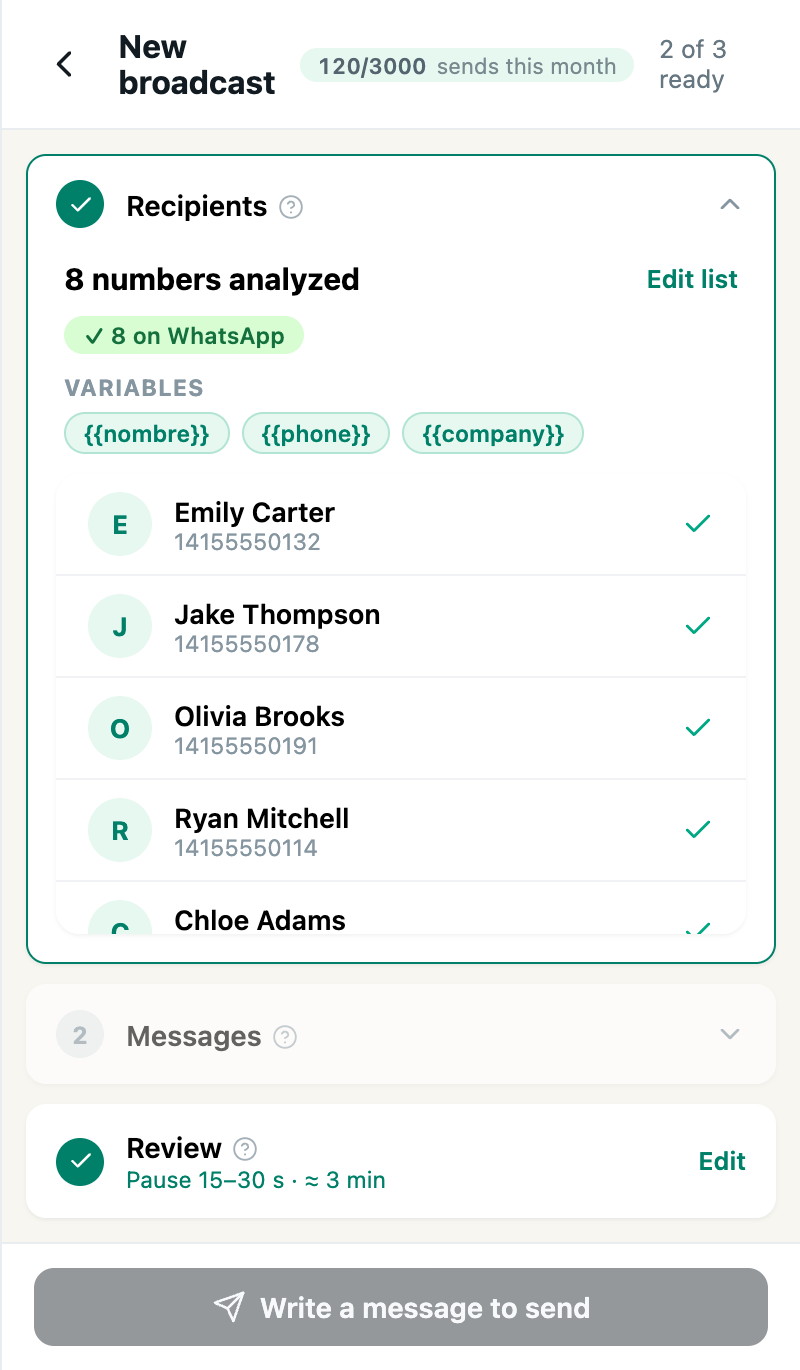
You can also get to Bulk send from Export contacts (Load into Bulk send) or from Verify numbers (send to the ones on WhatsApp).
Always include the country code (for example 1 for the US or 91 for India), and check your file for duplicate numbers: Wapes sends to every row on the list.
2. Verify before sending
If your list is old or you’re not sure where it came from, run it through Verify numbers first: it tells you which numbers are on WhatsApp without messaging them. You won’t waste sends on numbers that don’t exist, and you avoid one of the signals WhatsApp links to automated sending.
3. Write the message
Use variables so every message comes out different:
Hi {{name}}, it's Aurora Store — just letting you know that…
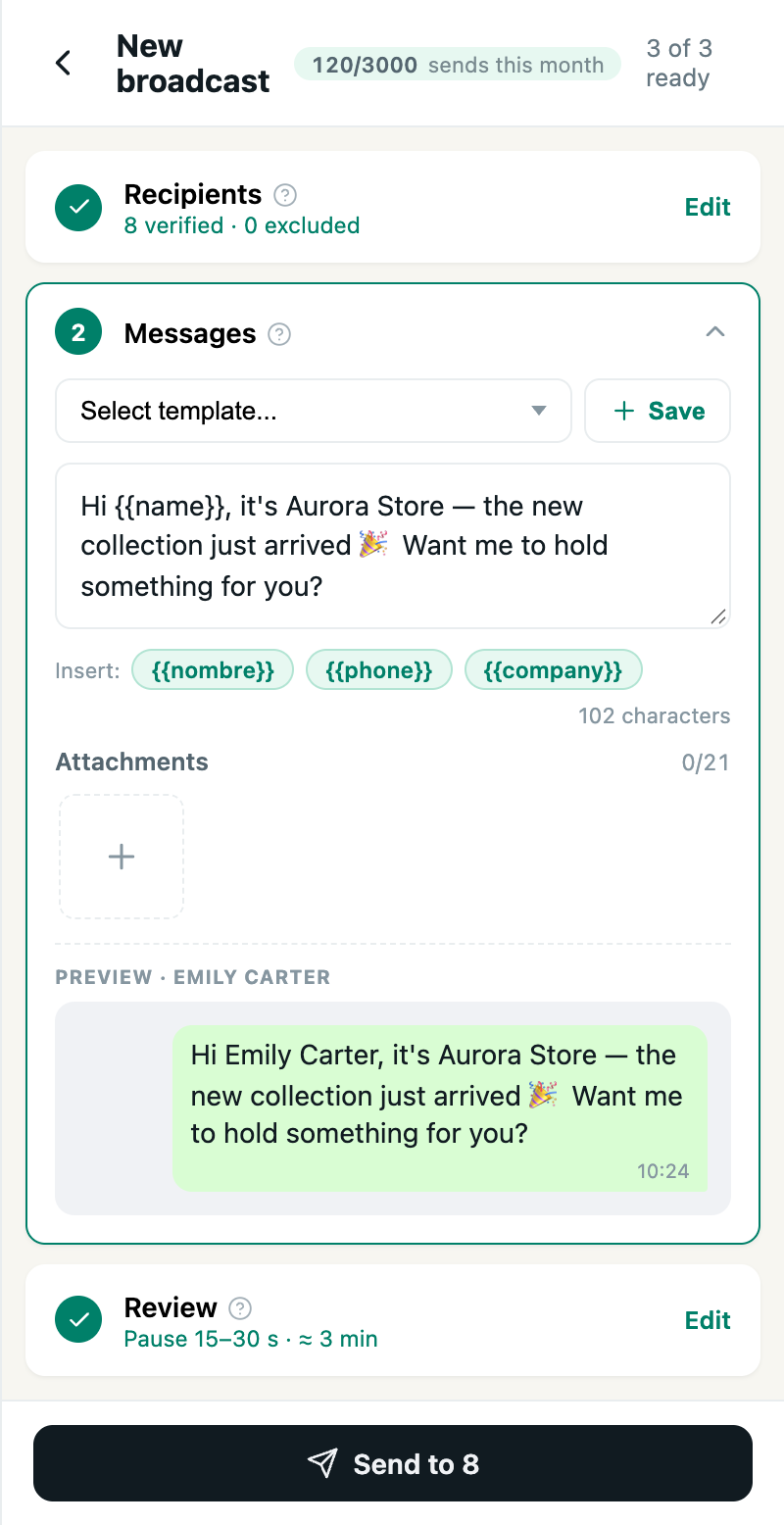
- The preview shows how it reads for a real contact.
- You can attach images, videos or PDFs.
- You can save it as a template to reuse later.
- End with a question or a “Reply YES to confirm”: every reply tells WhatsApp your message is welcome.
4. Review and send
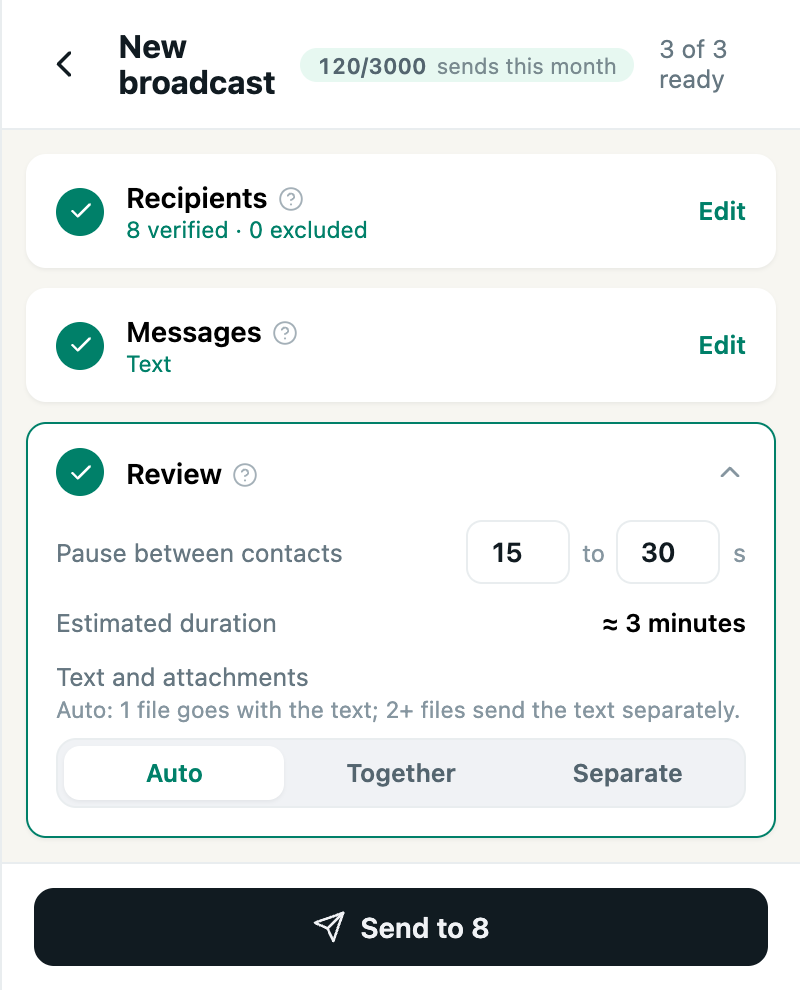
Before sending, the wizard shows the pause between contacts (by default a random 15 to 30 seconds), how long the send will take, and how text and attachments go out. You can make the pause longer if you want to go slower.
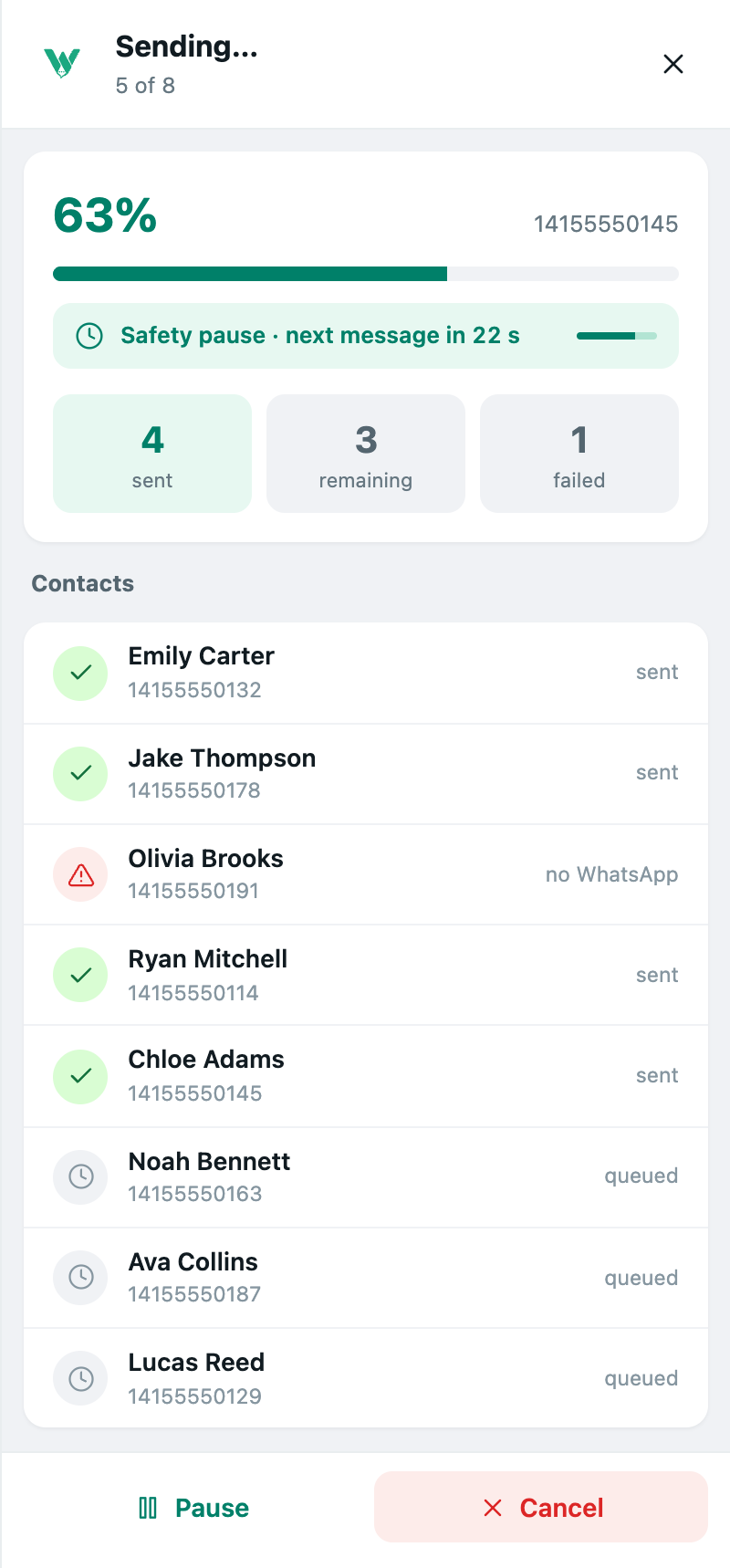
Once you confirm, you’ll see live progress: sent, remaining and failed, plus the status of each contact. You can pause, resume or cancel at any time.
Don’t close the WhatsApp Web tab while the send runs. You can use other tabs, but that one has to stay open.
5. After the send
Download the report with Export results (.xlsx) to see who got it and who didn’t.
Most important: read the replies. A campaign that starts conversations is a healthy one. If nobody replies or WhatsApp shows you a warning, stop for the day and review who you’re writing to. If you ever see “Your account is restricted”, follow this guide.
Sends included in each plan
| Plan | Sends |
|---|---|
| Free | 10 per day, up to 200 per month |
| Standard | 3,000 per month, no daily cap |
| Pro | No caps |
These are Wapes’ caps. WhatsApp has its own, and no plan lifts them: WhatsApp’s limits.